Set up the plugin
Now that the UI is running locally, you need a plugin to work with. The plugin template gives you a working starting point.
Clone the plugin template
In a separate directory (not inside trustgraph-ui):
git clone https://github.com/trustgraph-ai/ui-plugin-template.git
cd ui-plugin-template
npm install
npm run build
This builds the plugin so it’s ready to load.
Configure the plugin build output
By default the template builds to template.iife.js. To rename it to onboarding.iife.js, make two changes in the plugin directory:
- In
package.json, replacetemplate.iife.jswithonboarding.iife.js - In
vite.config.js, replacetemplatewithonboarding
Then rebuild:
npm run build
Check that dist/onboarding.iife.js exists — if it’s still called template.iife.js, double-check the changes above.
Link the plugin into the UI
The UI loads plugins from the packages/portal/public/plugins/ directory. When you build the plugin, the output goes into the dist/ directory in the plugin repo. Symlink this into the UI so the dev server picks it up automatically whenever you rebuild the plugin:
cd trustgraph-ui
ln -s /path/to/ui-plugin-template/dist/onboarding.iife.js \
  packages/portal/public/plugins/onboarding.iife.js
Replace /path/to/ui-plugin-template with the actual path to your cloned plugin directory.
Verify the symlink works:
cat packages/portal/public/plugins/onboarding.iife.js | head -1
You should see the first line of the built JavaScript. If you get a “No such file or directory” error, check the symlink path and make sure you’ve run npm run build in the plugin directory.
Register the plugin
Edit packages/portal/public/config/components.json. This file contains an array of tab groups, each with a components array. Find the Demos tab and add an entry for your plugin:
{
  "id": "onboarding",
  "title": "Onboarding Bot",
  "icon": "△",
  "paletteKey": "cyan",
  "description": "Office onboarding and 'who knows what?' bot.",
  "url": "/plugins/onboarding.iife.js",
  "globalName": "TemplatePlugin"
}
The url must match the symlinked filename. The globalName must match the global name exported by the plugin build. Our template uses TemplatePlugin. Make sure the new entry is separated from adjacent entries by commas - missing commas in JSON are a common source of load failures.
In your browser, do a hard reload (Shift-reload) to pick up the new configuration. Navigate to the Demos tab — you should see your Onboarding Bot plugin listed. Click it to confirm it loads.
The template plugin has a few tabs — the first is a “Hello World” tab. If you can see that, the plugin is loaded and working.
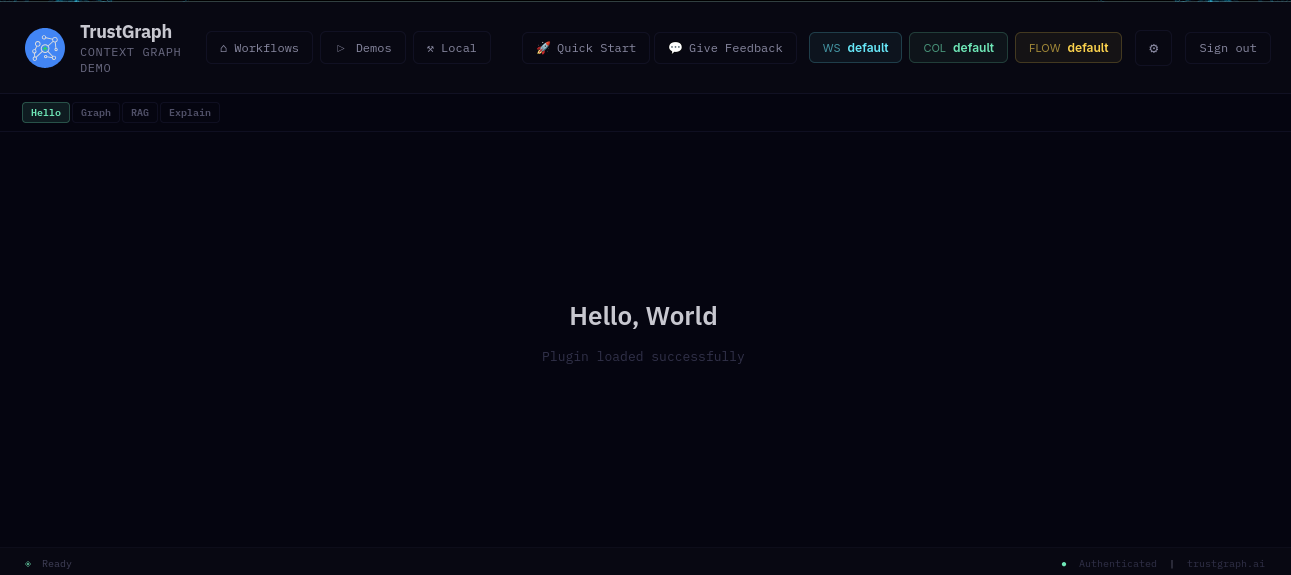
If the plugin doesn’t appear, open your browser’s developer tools (F12) and check the Console tab for plugin load errors — this will usually tell you if the filename, path, or globalName doesn’t match.
Next
Test the round-trip — make a small change and confirm the edit-build-reload cycle works.