Graph RAG Guide
Query documents using automatically extracted entities and their relationships in a knowledge graph using the Workbench
Beginner
20 min
- TrustGraph deployed (Installation Guide)
- Understanding of Core Concepts
Extract entities and relationships from documents, create Graph RAG flows, and query knowledge graphs using semantic search and graph traversal.
Query documents using graph embeddings and knowledge graph relationships
GraphRAG is a technique which uses automated extraction of relationships from unstructured text, which is stored in a knowledge graph.
GraphRAG is a very effective technique for retrieval on complex diverse information, with complex structures. Graph RAG uses vector embeddings to go from questions to knowledge graph nodes, but then uses graph node relationships to discover related information.
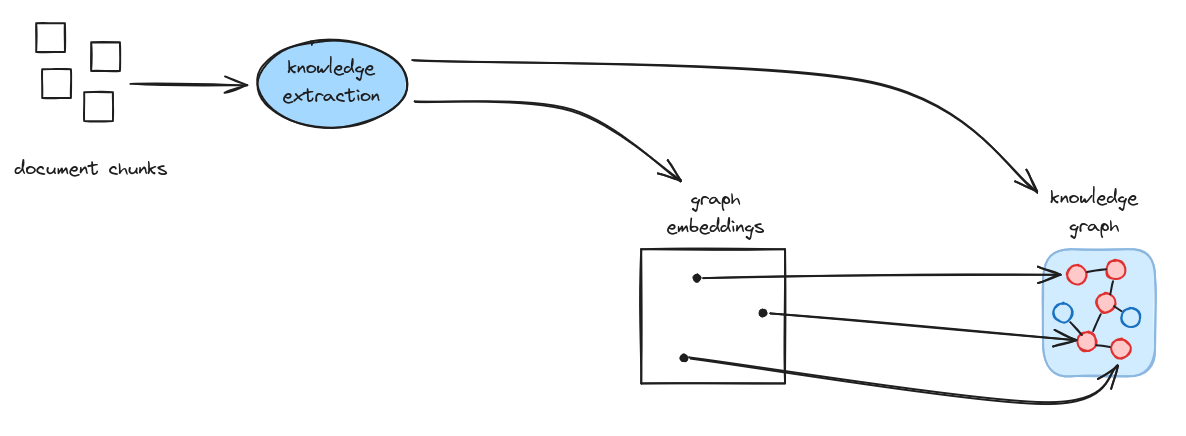
In TrustGraph, Graph RAG refers to information extraction without an ontology or schema. Ontology-free knowledge extraction automatically discovers relationships in unstructured text. In contrast, Ontology RAG uses an ontology.
What is Graph RAG?
The essential Graph RAG ingest flow consists of:
- Chunking documents into smaller pieces
- Knowledge Extraction to discover entities and relationships
- Embedding each entity as a vector and storing these in a vector store
- Storing entity relationships in a knowledge graph
- Retrieving using semantic similarity to discover knowledge graph entry points
- Traversing the knowledge graph to find related information
- Generating responses using the knowledge subgraph as context to an LLM
The pros and cons of this approach:
- ✅ Pro: Much more precise retrieval
- ✅ Pro: Effective when faced with complex relationships or diverse data
- ✅ Pro: Scales to handle much larger document sets
- ✅ Pro: No need for an ontology/schema as relationships are discovered automatically
- ⚠️ Con: Knowledge extract has a cost at document ingest time
- ⚠️ Con: Token costs required to ingest documents
When to Use Graph RAG
✅ Use Graph RAG when:
- Questions require understanding relationships
- Answers need context from multiple documents
- You need to connect disparate information
- Reducing hallucinations is critical
- Questions involve “how are X and Y related?”
⚠️ Consider alternatives when:
- Simple keyword search on small data is sufficient → Use Document RAG
- Need structured typed data → Use Ontology RAG
Prerequisites
Before starting:
- ✅ TrustGraph deployed (Installation Guide)
- ✅ Understanding of Core Concepts
Step-by-Step Guide
Step 1: Load Your Document
TrustGraph supports multiple document formats:
- PDF files (
.pdf) - Text files (
.txt) - Markdown (
.md) - HTML (
.html)
We’re going to start by using a fictional maritime tracking report which you can download at this URL:
- Download the document
- Go to the Workflows page and click + Add Document
- A new dialogue appears — click the filename button and select the file you downloaded. The MIME type field should fill in automatically.
- Set the Title: Operation PHANTOM CARGO
- Set the Description to: Intelligence report: Operation PHANTOM CARGO
- Add tags: phantom cargo, intelligence, maritime, shipping
- Click Upload
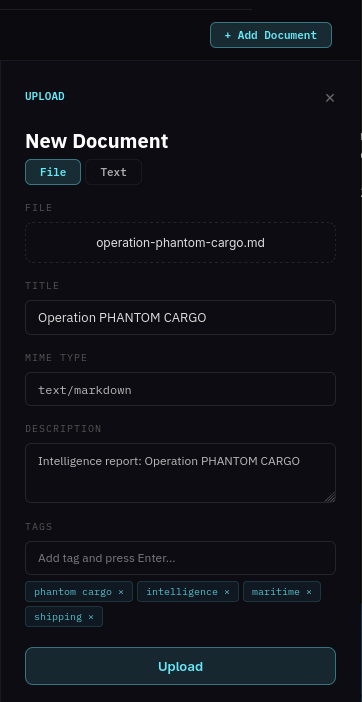
The document shows upload progress. On upload completing, the new document outline changes to a solid line.
Step 2: Submit the Document for Processing
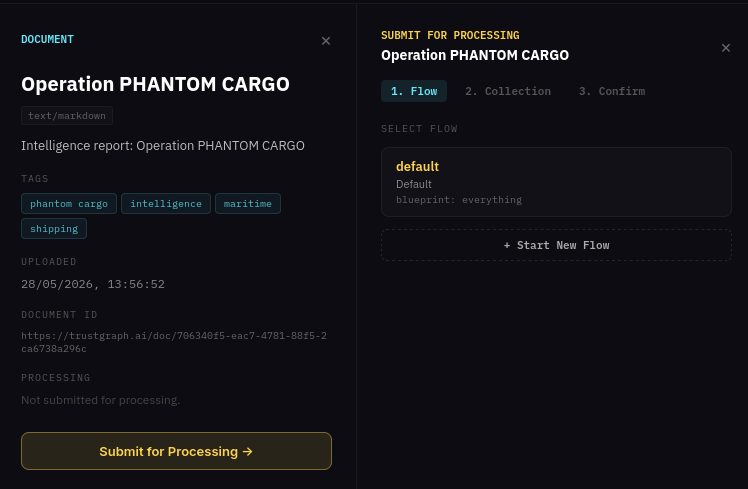
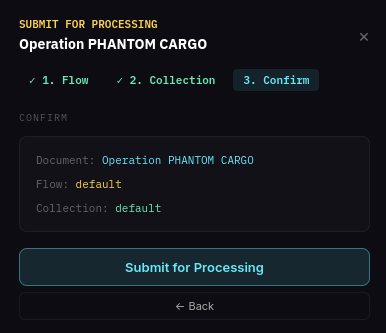
Once the document is uploaded, click Submit for Processing on the document detail panel. A 3-step wizard appears to select a flow and collection.
Select a flow: Choose which processing flow to use. You can select an existing flow or start a new one. For this guide, select default.
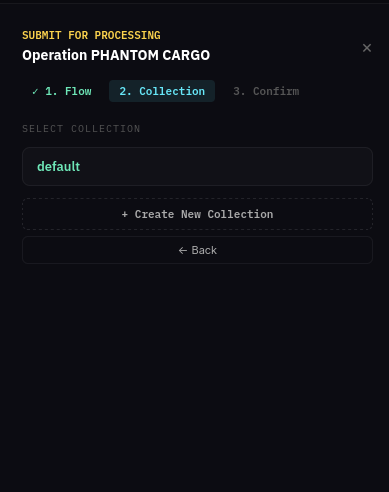
Select a collection: Choose which collection the results should be stored in. You can select an existing collection or create a new one. For this guide, select default.
Confirm: Review the document, flow and collection selections, then click Submit for Processing.
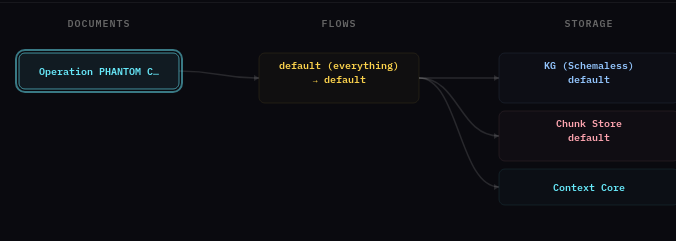
The main page reconfigures to show the document with its processing pipelines — documents on the left, flows in the middle, and storage destinations on the right.
Step 5: Monitoring
If you want to see the document loading, you can go to Grafana at http://localhost:3000. Login with username admin and the password you set in GF_SECURITY_ADMIN_PASSWORD. Grafana is configured with a single dashboard. Some useful things to monitor are:
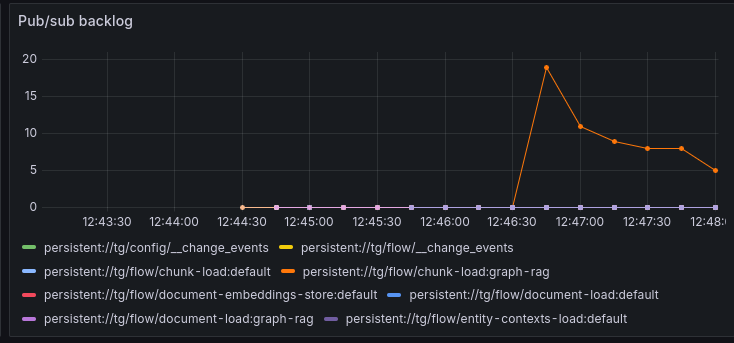
The pub/sub backlog. You can monitor the size of queues in Pulsar. GraphRAG knowledge extraction causes a queue of chunks for processing in knowledge extraction and you can see this in the backlog:
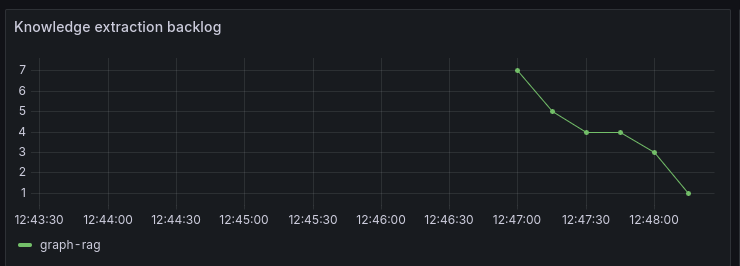
There is also a knowledge extraction backlog graph which helps to see knowledge extraction if other queues are being exercised:
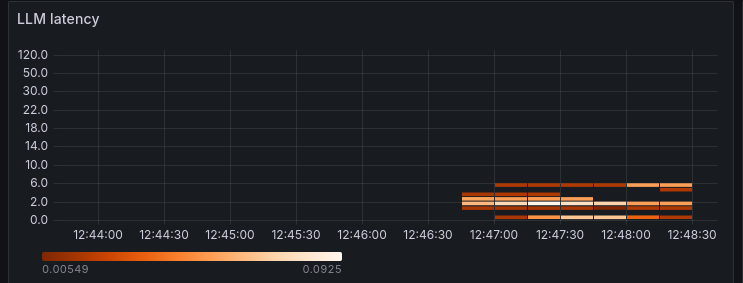
To gauge LLM effectiveness, there is a heatmap which shows LLM latency. Here we can see that LLM response times for my LLM processing are in the 6 second window.
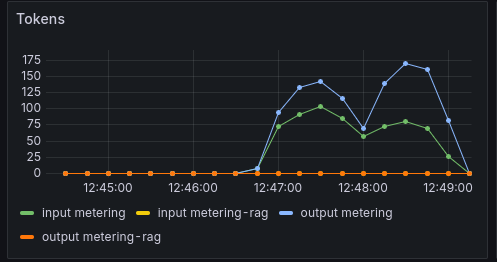
Another LLM effectiveness graph, the Token graph shows token throughput over time, the Y-axis shows tokens/s rate.
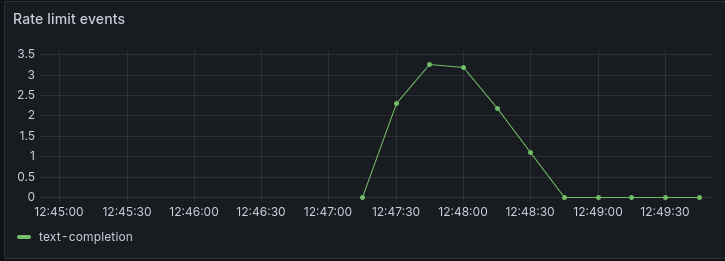
Finally, another useful chart shows the rate limit events per second. These are commonly seen in the text-completion process which interfaces with the LLM. Rate limit events are normal for a knowledge extraction backlog. This might particularly be helpful for you to determine whether you need to provision more LLM bandwidth or dedicated hosting.
The document we loaded is small, and will process very quickly, so you should only see a ‘blip’ on the backlog showing that chunks were loaded and cleared quickly.
It can take many minutes or hours to process large documents or large document sets using GraphRAG extraction.
Step 6: Query with Graph RAG
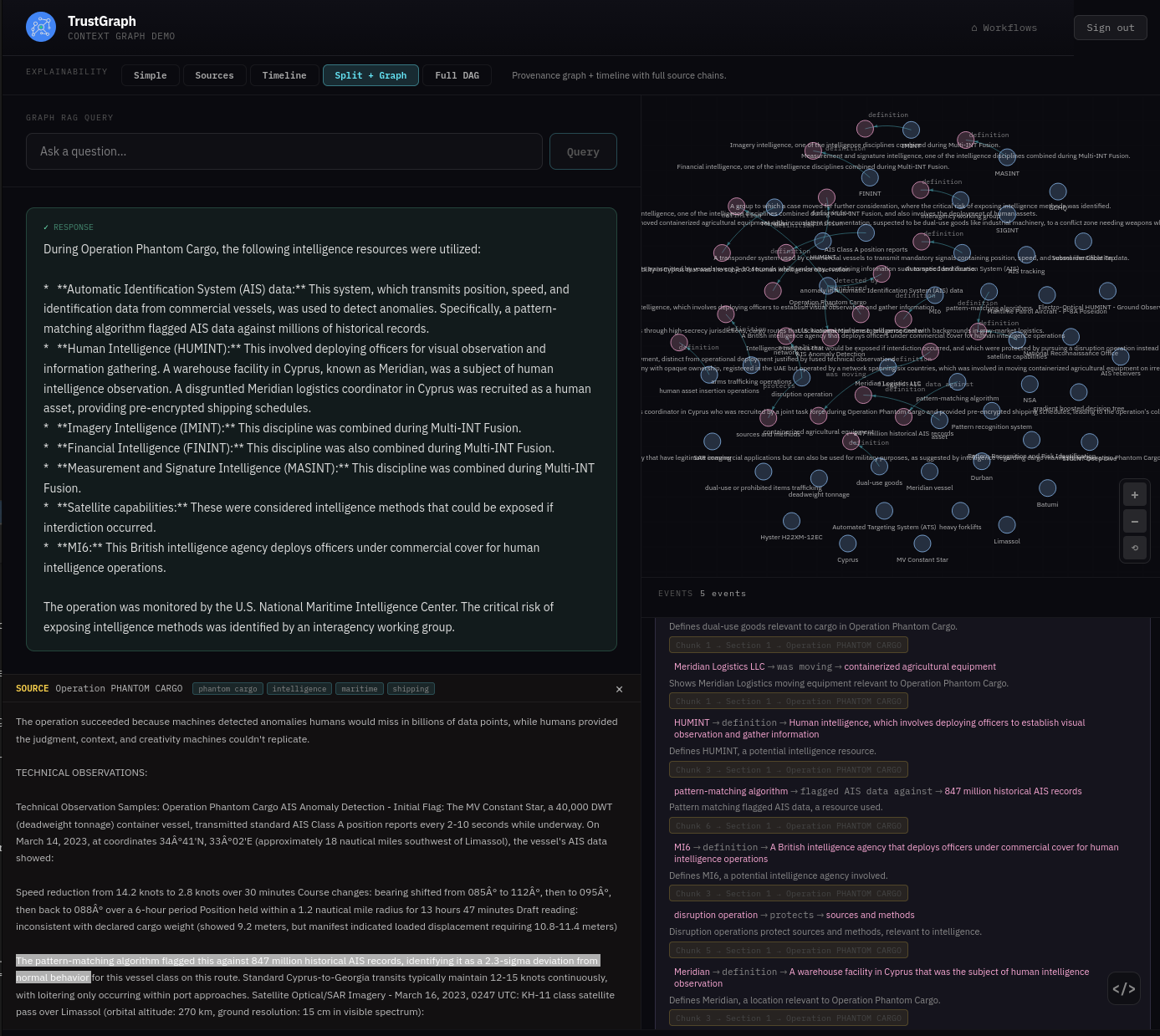
From the Workflows page, select Graph RAG Query. This console has full Explainable AI enabled, which helps to understand and diagnose retrieval.
Enter the question: What intelligence resources were using during the PHANTOM CARGO operation? After a short while you should see a response.
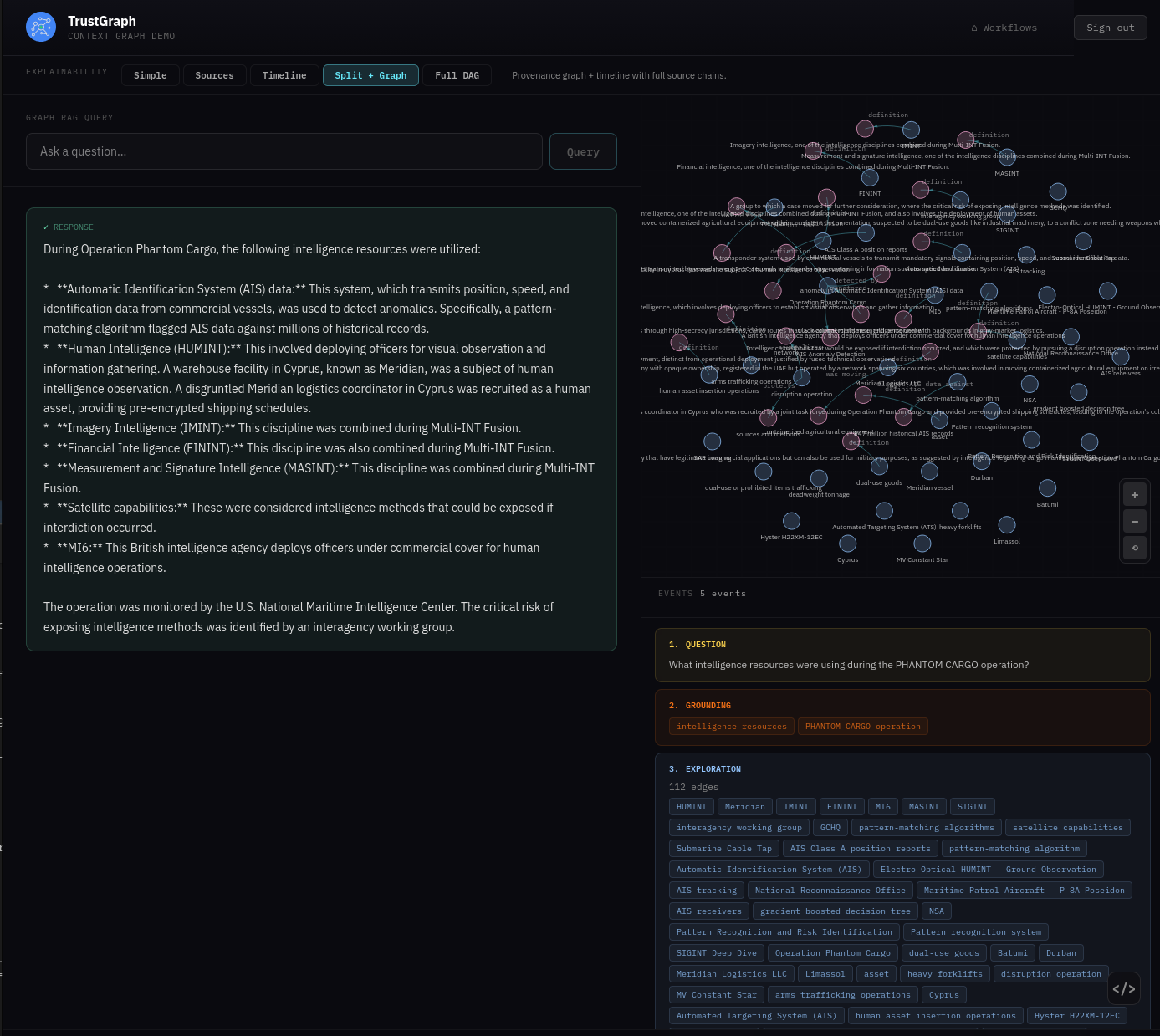
On the left-hand side you see the answer to the query. The bottom right part of the screen shows the various explainability events, starting from the question:
- Grounding — where retrieval selects key concepts for discovery
- Exploration — where graph nodes are selected for analytics
- Focus — where the system decides on a core set of graph edges to resolve the question
- Synthesis — where this is processed to provide an answer
The Focus event may be of particular interest as you can trace graph edges all the way back to the source documents. For example, the graph edge (pattern-matching algorithm → flagged AIS data against → 847 million historical AIS records) has a link to source below which, when followed, shows the original source text.
Step 7: Explore the knowledge graph
From the Workflows page, select Graph Explorer. This shows what’s in the knowledge graph with tools for viewing and searching.
The graph can be easier to see in 3D — click the 3D button above the graph view.
If you click a node, it will be highlighted along with its related edges. A side panel also appears showing node properties and highlighted links that allow you to navigate to related nodes.
On the top left is a Search button which opens a search dialog. You can enter text for a similarity search against nodes in the graph. Matching nodes are listed and can be selected, which adds them to the graph along with their neighbours.
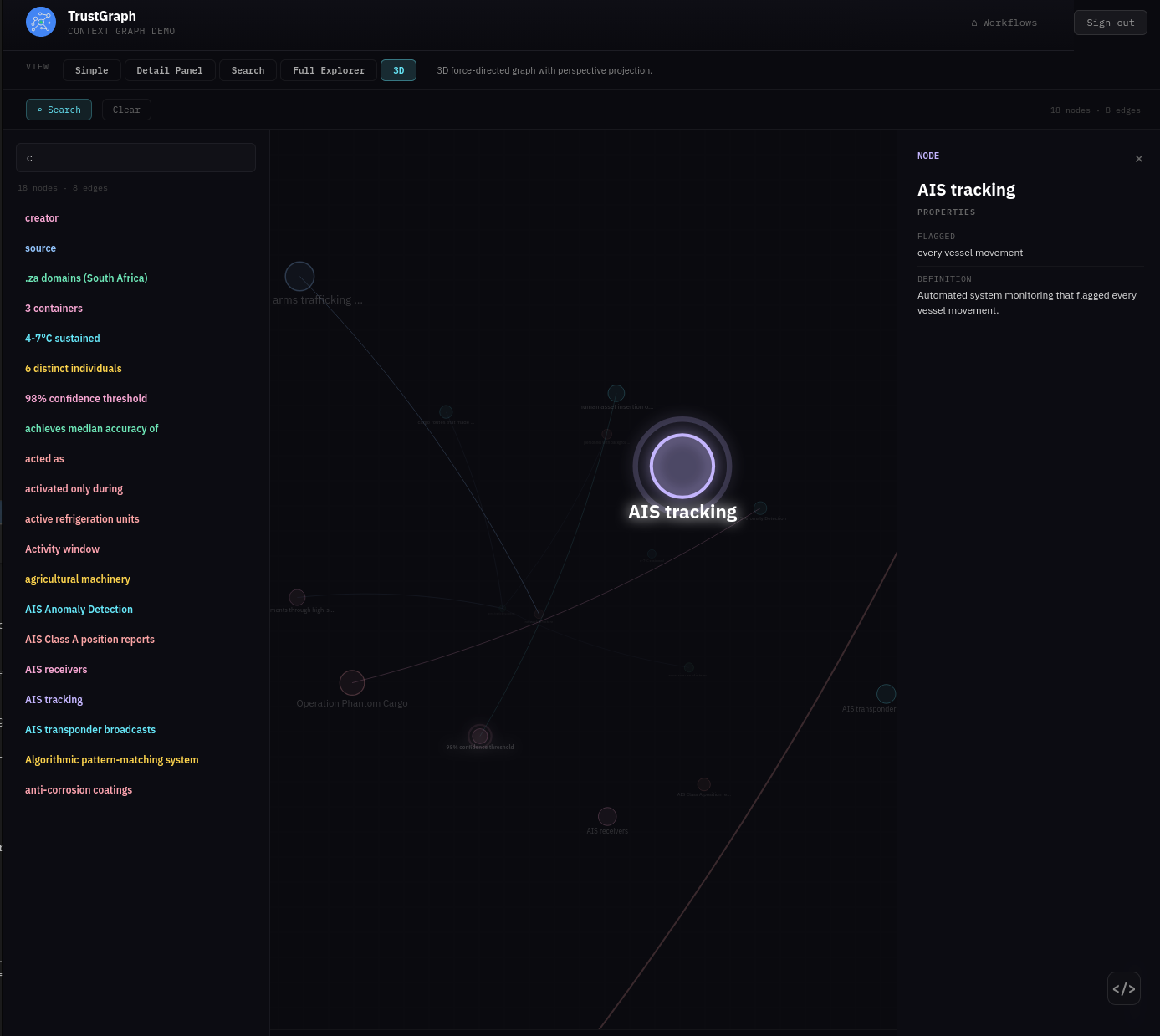
There is also a Clear button which resets the graph back to an empty state.
GraphRAG vs. Other Approaches
| Aspect | Document RAG | Graph RAG | Ontology RAG |
|---|---|---|---|
| Retrieval | Vector similarity | Graph relationships | Schema-based |
| Context | Isolated chunks | Connected entities | Connected objects, properties and types |
| Best for | Semantic search | Complex relationships | Complex relationships + precise types |
| Setup | Simple | Simple | Complex |
| Speed | Fast | Medium | Medium |
Use multiple approaches: The processing flow defines the extraction and retrieval mechanisms, so you can use multiple approaches on the same data.
Next Steps
Explore Other RAG Types
- Ontology RAG - Use structured schemas for extraction
Advanced Features
- Structured Processing - Extract typed objects
- Agent Extraction - AI-powered extraction workflows
- Object Extraction - Domain-specific extraction
Using the CLI
For command-line workflows, see the Graph RAG CLI Guide.
Related Resources
- Getting Started - Introduction to TrustGraph
- Deployment - Scaling for production
- Monitoring - Monitoring and diagnostics