Document RAG Guide
Query documents using vector embeddings and semantic similarity search using the Workbench
Beginner
20 min
- TrustGraph deployed (Installation Guide)
- Understanding of Core Concepts
Load documents into TrustGraph, create Document RAG flows, and query using vector similarity search while understanding its limitations.
Query documents using vector embeddings and semantic search
Document RAG (also called “basic RAG”, “naive RAG”, or simply “RAG”) is the original retrieval-augmented generation approach that uses vector embeddings to find relevant document chunks and provides them as context to an LLM for generating responses.
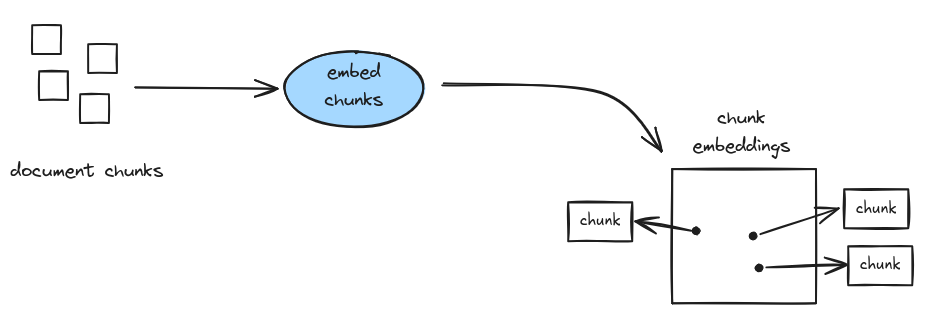
Despite being introduced in 2020, many practitioners in 2023 treated basic RAG as if it were a revolutionary breakthrough, seemingly unaware of its well-documented limitations. The approach is straightforward: chunk your documents, embed them, perform similarity search, and hope the LLM can make sense of whatever fragments get retrieved.
While document RAG can work for simple use cases, it struggles with multi-hop reasoning, fails to capture document structure, and has no mechanism for handling contradictory information across chunks. The “naive” in “naive RAG” is there for a reason—yet it remains surprisingly popular among those who stopped reading the literature after the first paper.
Document RAG is the most basic information retrieval flow. It can prove useful for some limited cases, but you should consider GraphRAG or Ontology RAG for real-world information retrieval use-cases.
What is Document RAG?
The essential Document RAG ingest flow consists of:
- Chunking documents into smaller pieces
- Embedding each chunk as a vector
- Storing vectors in a vector database along with the chunks
- Retrieving similar chunks based on query embedding
- Generating responses using retrieved context and an LLM
The pros and cons of this approach:
- ✅ Pro: Quicker ingest time compared to knowledge extraction flows
- ✅ Pro: No token consumption on document ingest
- ⚠️ Con: Sentence embeddings are imprecise and limited for retrieval where documents contain diverse concepts
- ⚠️ Con: Ineffective for resolving complex questions
When to Use Document RAG
✅ Use Document RAG when:
- You need semantic search over documents
- Questions can be answered from isolated passages
- You want simple, fast implementation
- Document context is self-contained in paragraphs or chunks
⚠️ Consider alternatives when:
- You need to understand relationships between entities → Use Graph RAG
- You need structured schema-based extraction → Use Ontology RAG
- Answers require connecting information across documents → Use Graph RAG
Prerequisites
Before starting:
- ✅ TrustGraph deployed (Installation Guide)
- ✅ Understanding of Core Concepts)
Step-by-Step Guide
Step 1: Load Your Document
TrustGraph supports multiple document formats:
- PDF files (
.pdf) - Text files (
.txt) - Markdown (
.md) - HTML (
.html)
We’re going to start by using a fictional maritime tracking report which you can download at this URL:
- Download the document
- Go to the Workflows page and click + Add Document
- A new dialogue appears — click the filename button and select the file you downloaded. The MIME type field should fill in automatically.
- Set the Title: Operation PHANTOM CARGO
- Set the Description to: Intelligence report: Operation PHANTOM CARGO
- Add tags: phantom cargo, intelligence, maritime, shipping
- Click Upload
The document shows upload progress. On upload completing, the new document outline changes to a solid line.
Step 2: Submit the Document for Processing
Once the document is uploaded, click Submit for Processing on the document detail panel. A 3-step wizard appears to select a flow and collection.
Select a flow: Choose which processing flow to use. For this guide, select default.
Select a collection: Choose which collection the results should be stored in. For this guide, select default.
Confirm: Review the document, flow and collection selections, then click Submit for Processing.
Step 5: Monitoring
If you want to see the document loading, you can go to Grafana at http://localhost:3000. Login with username admin and the password you set in GF_SECURITY_ADMIN_PASSWORD. Grafana is configured with a single dashboard, which has a ‘pub/sub backlog’ graph.
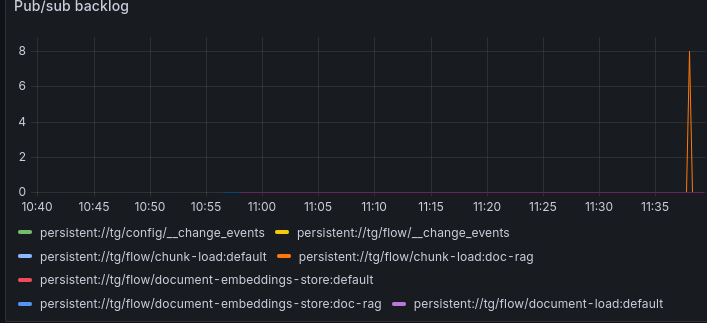
The document we loaded is small, and will process very quickly, so you should only see a ‘blip’ on the backlog showing that chunks were loaded and cleared quickly.
Step 6: Query with Document RAG
From the Workflows page, select Document RAG Query. This console has Explainable AI enabled, which helps to understand and diagnose retrieval.
Enter a question such as “Explain the role of SAR in the operation” and after a short while you should see a response.
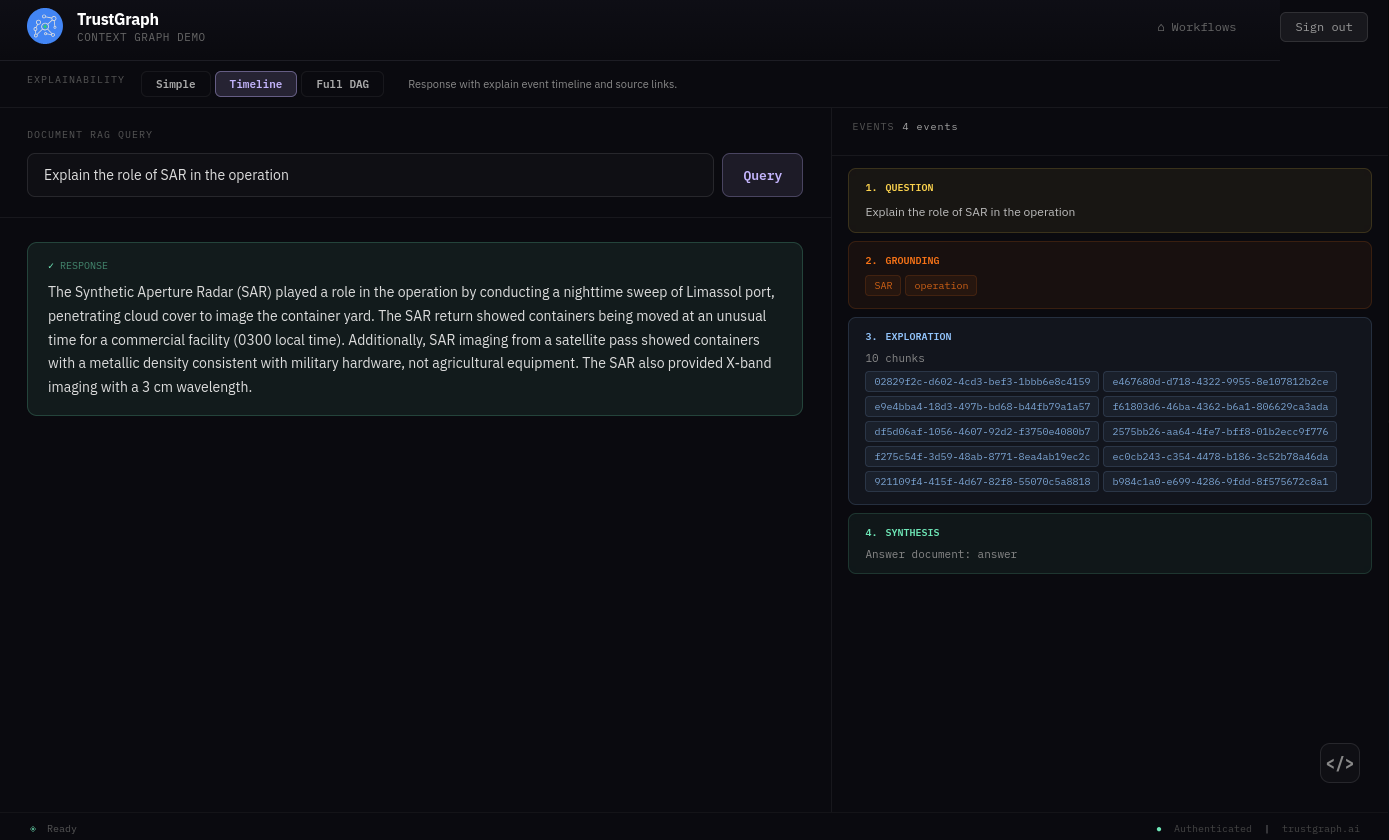
On the left-hand side you see the answer to the query. The right-hand side shows the link between the query and the chunk identifiers used for context. Document RAG does not have the rich explainability support of Graph RAG or Ontology RAG — there are no grounding, exploration or focus events to trace back to source material.
For command-line workflows, see the Document RAG CLI Guide.
Document RAG vs. Other Approaches
| Aspect | Document RAG | Graph RAG | Ontology RAG |
|---|---|---|---|
| Retrieval | Vector similarity | Graph relationships | Schema-based |
| Context | Isolated chunks | Connected entities | Connected objects, properties and types |
| Best for | Semantic search | Complex relationships | Complex relationships + precise types |
| Setup | Simple | Simple | Complex |
| Speed | Fast | Medium | Medium |
Use multiple approaches: The processing flow defines the extraction and retrieval mechanisms, so you can use multiple approaches on the same data.
Next Steps
Using the CLI
For command-line workflows, see the Document RAG CLI Guide.
Explore Other RAG Types
- Graph RAG - Leverage knowledge graph relationships
- Ontology RAG - Use structured schemas for extraction
Related Resources
- Getting Started - Introduction to TrustGraph